
Free
The Cmd+Tab section overlay, window focus and resize, workspace rehydration, up to 2 layers on one display and MCP read tools.
$0forever
- Cmd+Tab section overlay
- Focus and resize windows
- Workspace rehydration
- MCP read tools
Beta for macOS on Apple silicon
OmniGrid replaces the Cmd+Tab app switcher with a numeric overlay. Pick a screen, a section, then an app, and its window snaps into place.
Free beta. Apple silicon Macs only, macOS 11 or later. Not notarised yet. Windows and Linux are not available.
Swipe sideways to see the whole scene.
Layers
A layer is a complete arrangement of windows on a display. The layer picker draws each one as a live layout thumbnail with the app placed in every section, and a number key restores that layer. Free covers up to 2 layers. Pro has no limit.
Swipe sideways to see the whole scene.
On a real desktop
Three windows are tiled on the Planning layer. Open the overlay, choose the Writing layer, and three different windows take their sections. Focusing and snapping go through the macOS Accessibility API.
Layout editorPro
The layout editor works on the display itself: split sections, resize them, merge them and pick the app for each one. Free uses the built-in layouts. Pro adds the editor.
Swipe sideways to see the whole scene.
DisplaysPro
With several displays connected, the overlay asks for a screen first: a number picks it, then a section, then an app. Free manages one display. Pro manages all of them, each with its own layers and sections.
For AI agents
OmniGrid runs a local MCP server. In the free version an agent can read your screens, layers, sections, assigned apps and open windows. Pro adds write tools, so an agent can change the layout for you.
What an agent can do
get_workspace_statelist_presetsMenu bar and settings
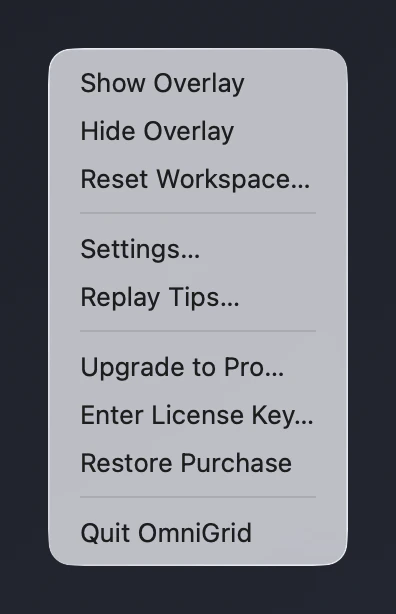
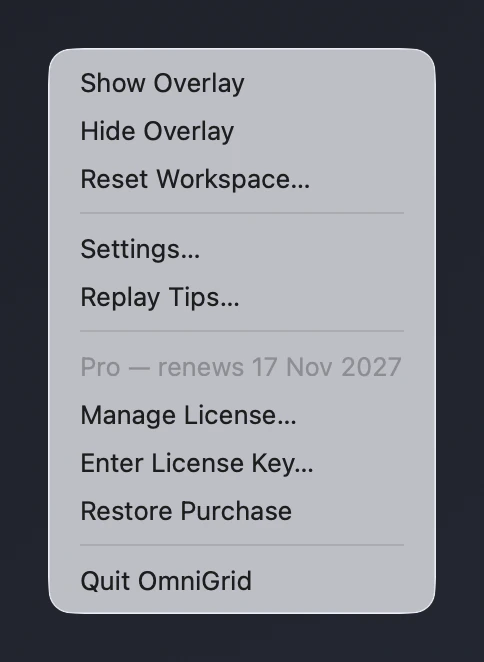
Show or hide the overlay, reset the workspace, open Settings or replay the tips, without switching apps. The menu follows your plan: Free shows Upgrade to Pro, an active Pro licence shows the renewal date and Manage License.
Free
Pro
Upgrade in the app
Settings has a License section that shows what your plan includes and an upgrade panel. Pay on the pricing page or from the app, and OmniGrid unlocks Pro when the payment clears. There is nothing to paste.
4 core features are free forever. Pro adds multiple displays, unlimited layers, the layout editor and MCP write tools.
Free and Pro, inside the app
Pro features carry a lock badge in the app. Open one on the Free plan and an upgrade panel explains what it adds.
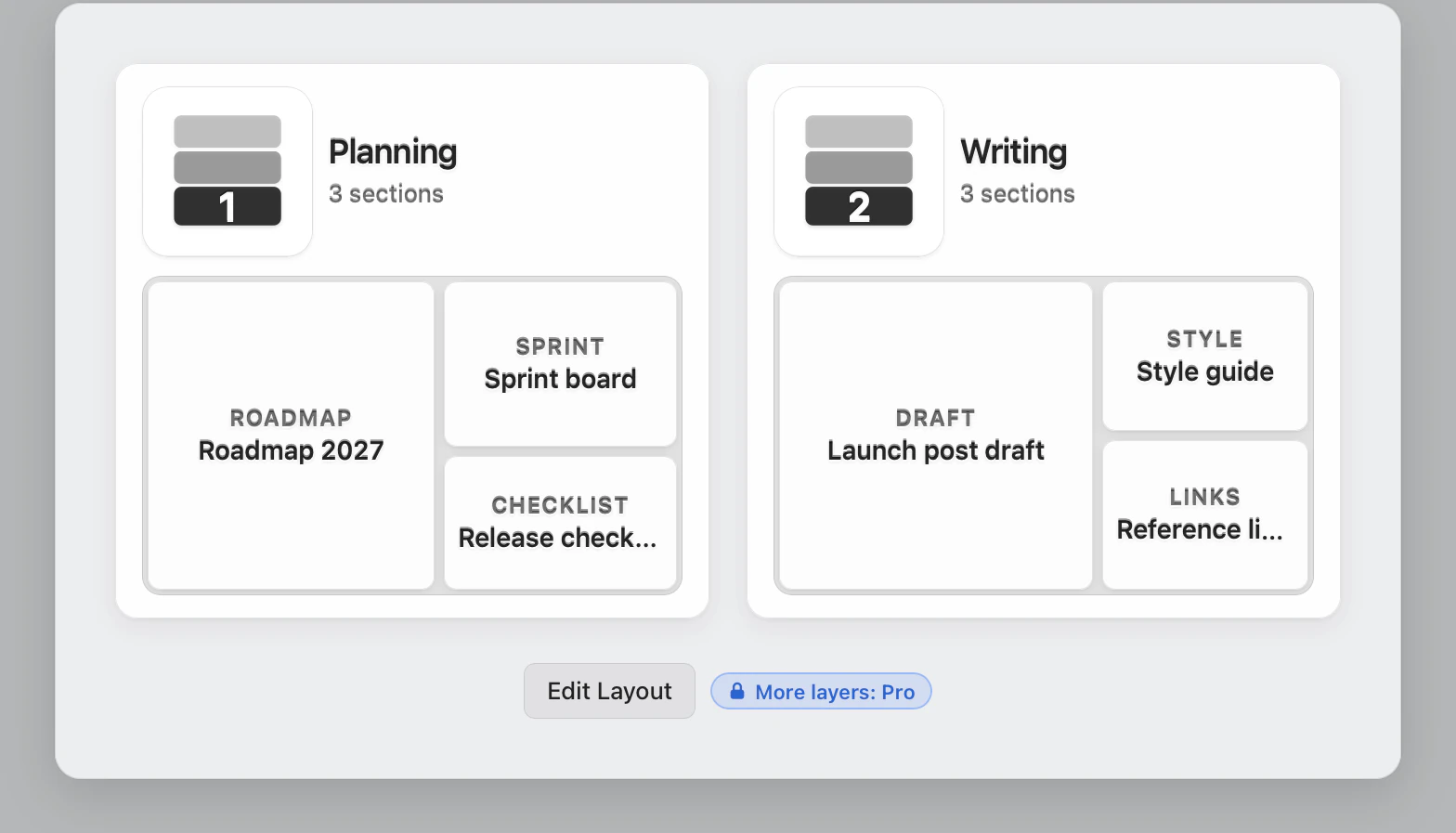
The Free plan has up to two layers on one display. A Pro lock badge marks that more layers need Pro. With Pro the picker has no limit.
Free
Pro
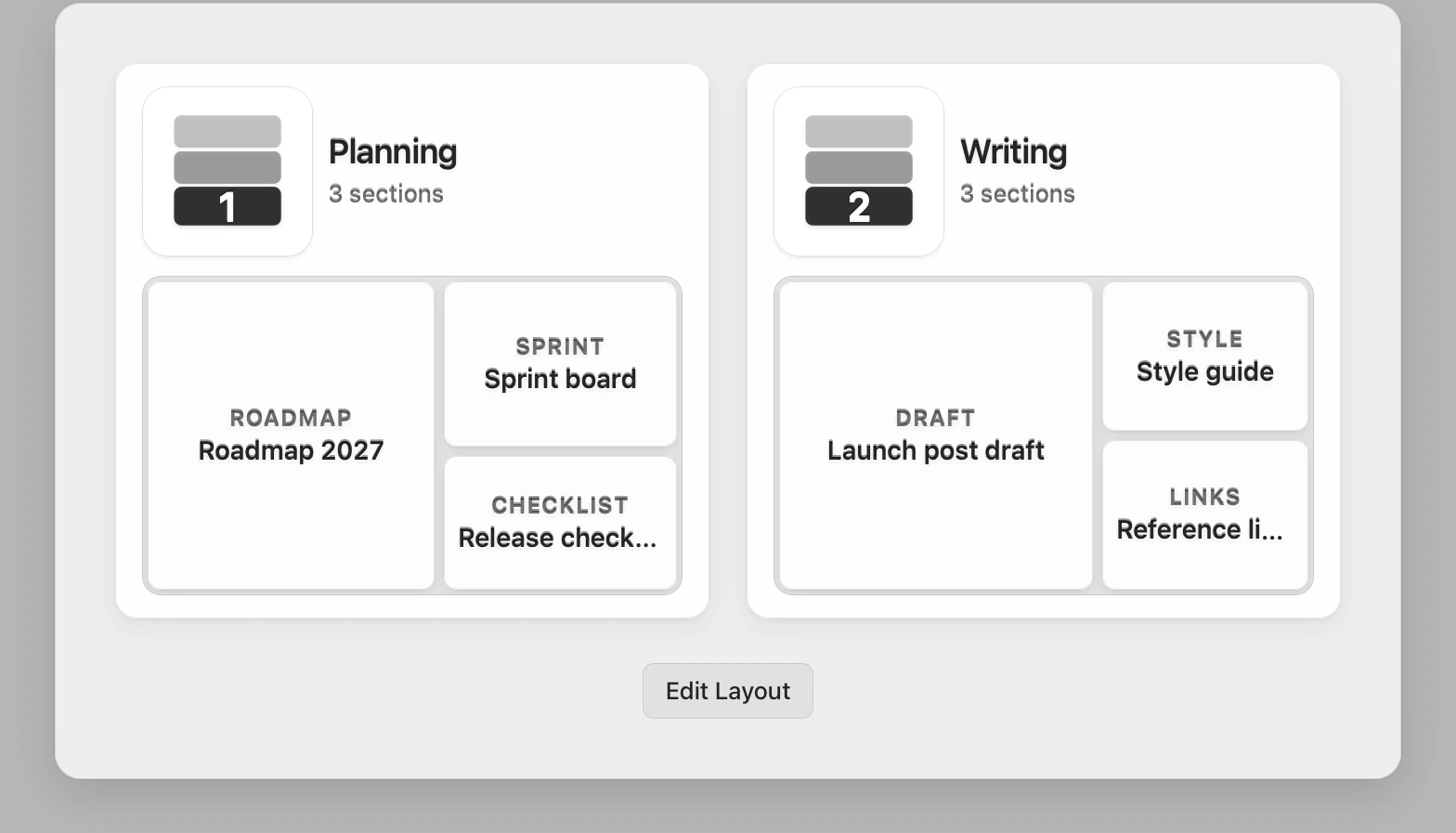
The layout editor is a Pro feature. On Free the Edit tab shows a Pro lock badge. With Pro it opens the editor on your display.
Free
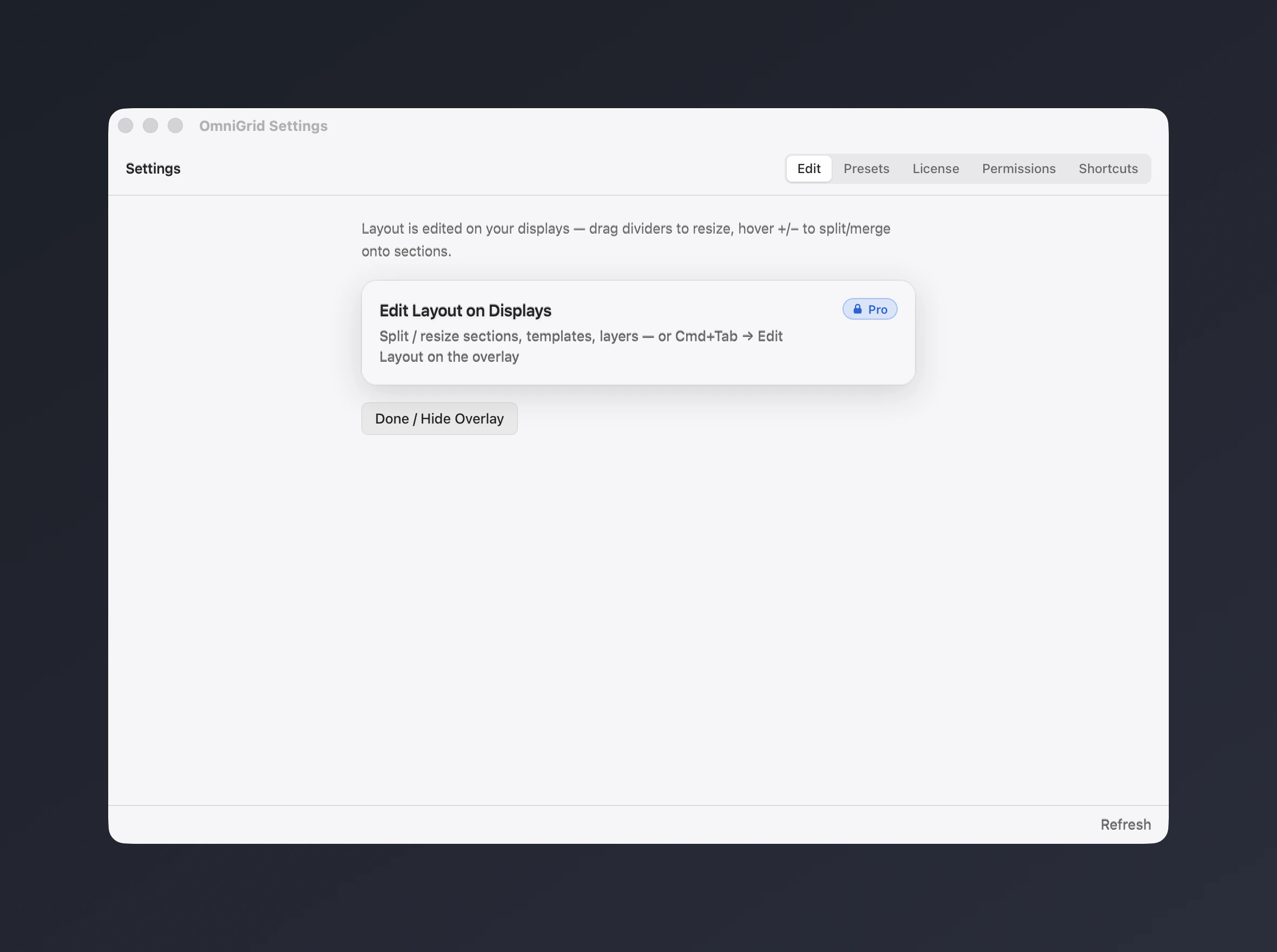
Pro
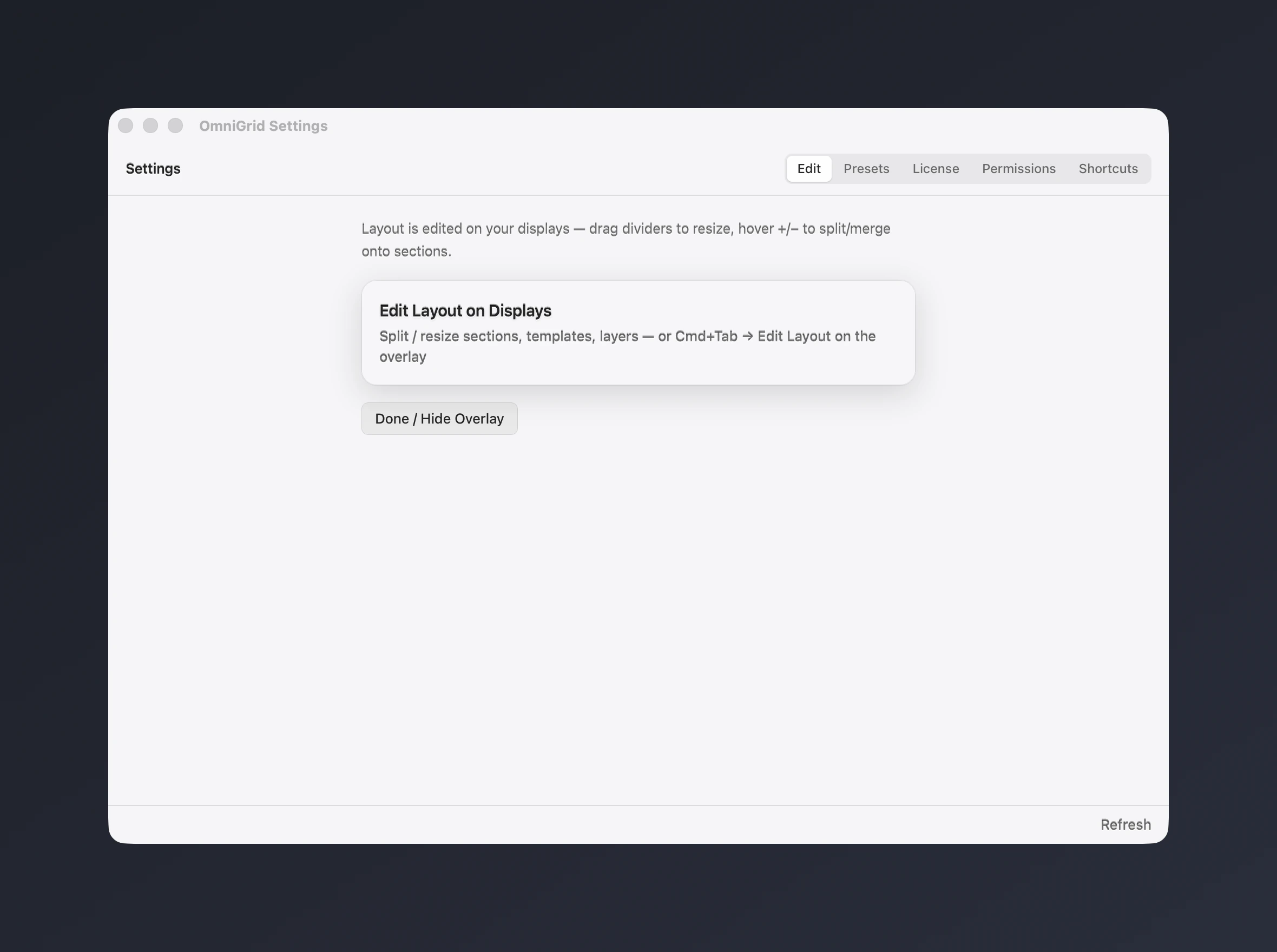
Settings shows your plan. Free offers Buy Pro, Enter key and Restore purchase. Pro shows the renewal date, the licence key ending and buttons to manage the subscription or deactivate this device.
Free
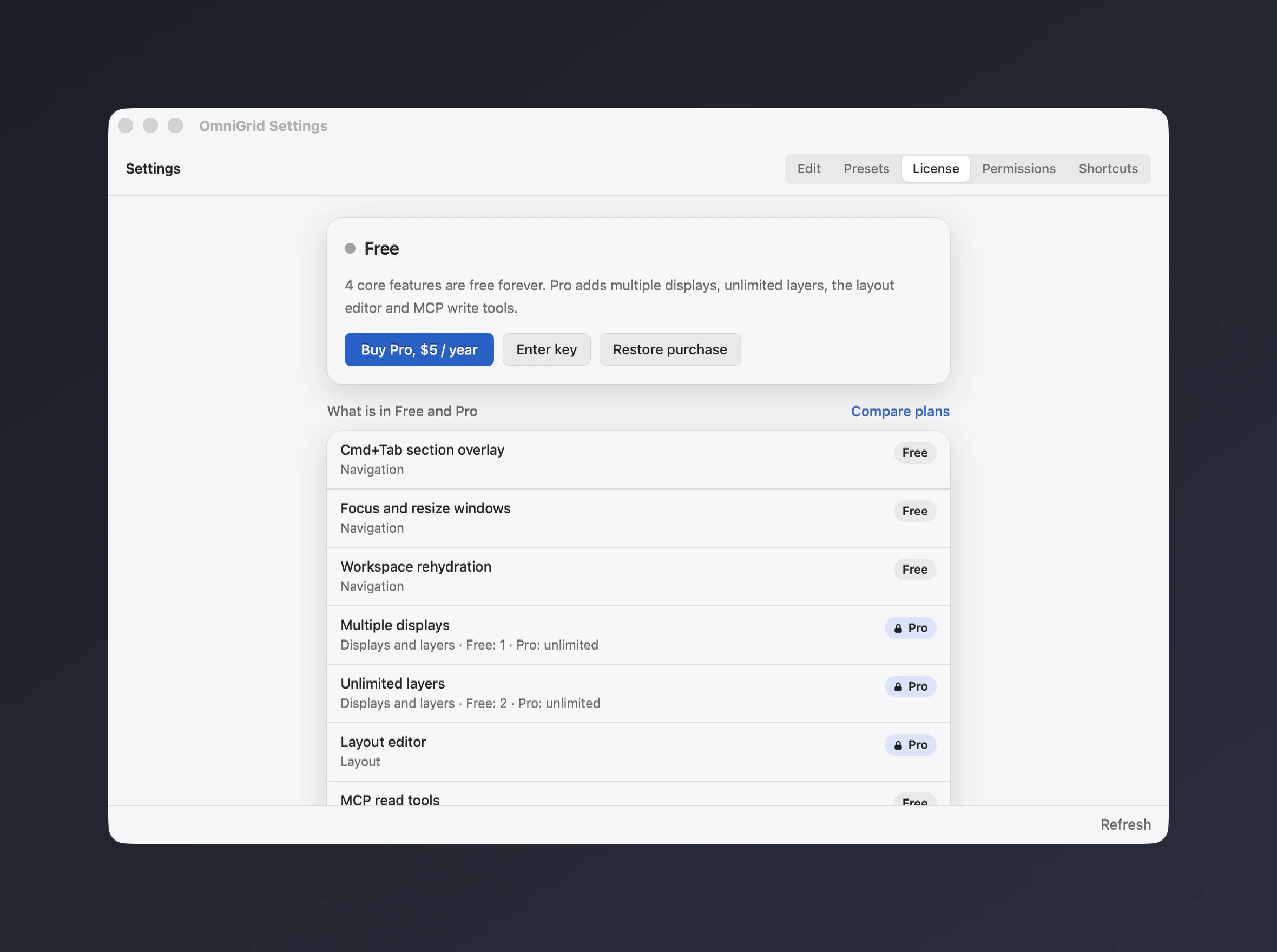
Pro
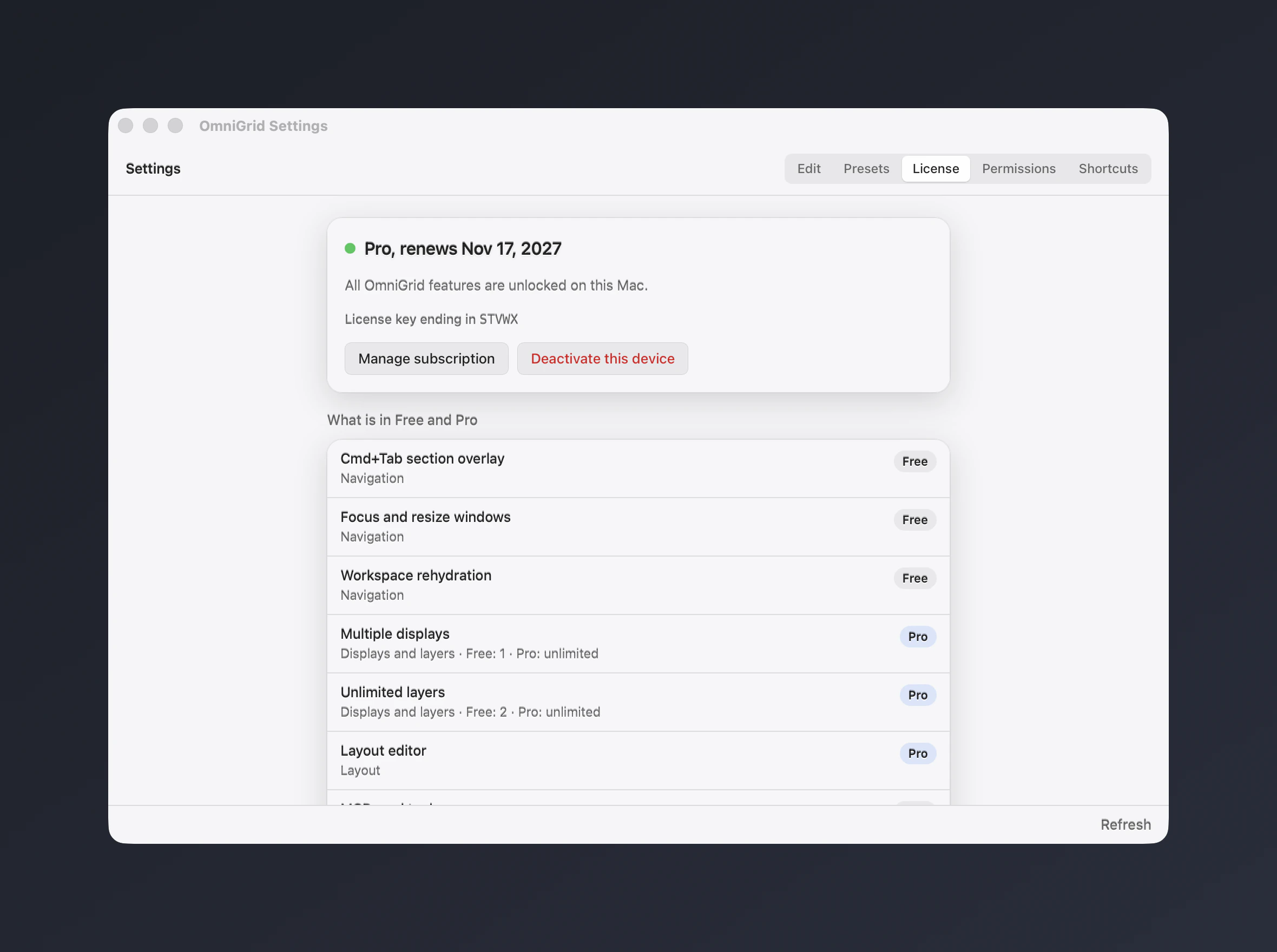
Real captures of the OmniGrid app over a neutral demo desktop. The Pro captures use a fake test key on a loopback mock licence server, so no purchase was made.
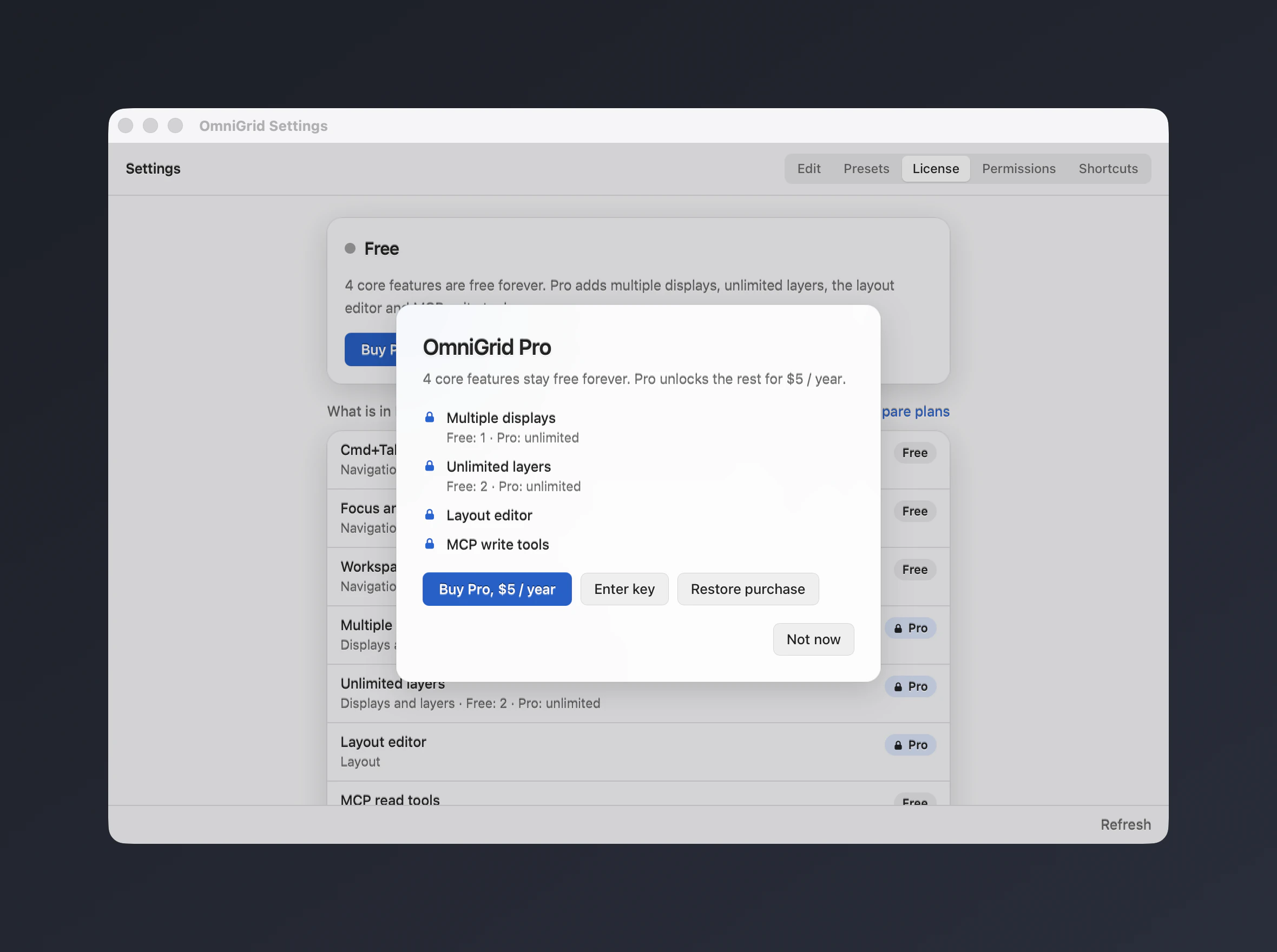
Upgrade panel
Choosing a Pro feature on the Free plan opens the OmniGrid Pro dialog over Settings. It lists the four locked features and offers Buy Pro, Enter key, Restore purchase or Not now.
How it works
OmniGrid needs the macOS permissions it asks for on first run. The Settings window shows what is missing.
Press Cmd+Tab. OmniGrid draws your displays as cards with their layers and sections.
Press a number for the screen, then the section. The layer picker lets you switch the whole layer.
Choose the app for that section. OmniGrid focuses it and snaps its window into place, and remembers it for next time.
Know the limits
Free and Pro
Every row below comes from the product configuration, so this table matches what the app does.
| Feature | Free$0 | Pro$5/year |
|---|---|---|
| Navigation | ||
| Cmd+Tab section overlayReplaces the app switcher with a numeric overlay: pick a screen, a section, then an app, all from the keyboard. | Included | Included |
| Focus and resize windowsFocus any app and snap its window into a section through the macOS Accessibility API. | Included | Included |
| Workspace rehydrationRestores your sections and window placement after a restart or relaunch from the saved workspace. | Included | Included |
| Displays and layers | ||
| Multiple displaysProManage every connected display with its own layers and sections. Free covers one display. | 1 | Unlimited |
| Unlimited layersProStack as many layers as you need on a display and switch between them. Free covers up to 2 layers. | 2 | Unlimited |
| Layout | ||
| Layout editorProDraw custom sections, split and merge them and assign shortcuts with the EditLayoutGrid editor. Free uses the built-in layouts. | Not included | Included |
| Automation | ||
| MCP read toolsLet AI agents read your workspace (screens, layers, sections, assigned apps, open windows) through get_workspace_state. | Included | Included |
| MCP write toolsProLet AI agents focus apps, assign windows, switch layers and edit sections and layers through the local MCP server. | Not included | Included |
The free beta covers the Cmd+Tab overlay on one display. Pro adds the rest.
The Cmd+Tab section overlay, window focus and resize, workspace rehydration, up to 2 layers on one display and MCP read tools.
$0forever
Multiple displays, unlimited layers, the layout editor and MCP write tools.
$5per year
Billed yearly in US dollars. Cancel any time from the link in your receipt.
Download the beta, grant the permissions, and press Cmd+Tab.
Beta. macOS 11 or later, Apple silicon.